If you’ve set up WordPress lately, you’ve probably seen two distinct ways to design a site. Some themes send you to the Customizer, a settings panel with a live preview. Others send you to the Site Editor, where you build your header, footer, and page layouts with blocks.
Both are WordPress themes, and both can look great. But they work in very different ways, and picking the wrong one can cost you time. This guide explains the classic theme vs block theme difference, what each one does well, and how to choose.
What Is a Classic Theme?
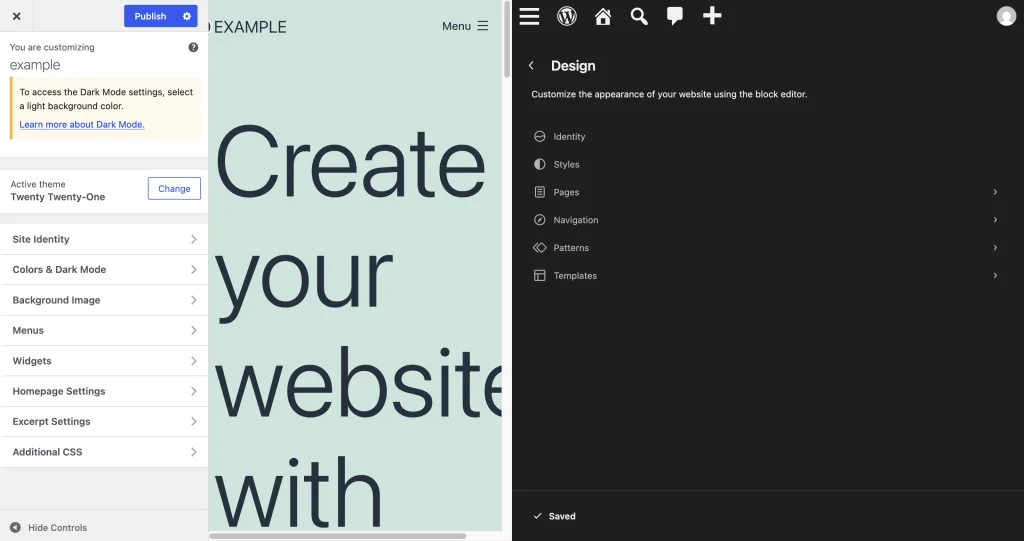
A classic theme uses PHP template files to decide how your site looks. Files like index.php, single.php, and header.php control each part of a page. PHP is the programming language WordPress runs on.
Classic themes come with their own set of tools:
- The Customizer (Appearance > Customize): a panel where you change colors, fonts, logos, and menus with a live preview.
- Widgets: small content boxes you place in sidebars and footers.
- Menus: a separate screen for building navigation.
- Theme File Editor: a place to edit the theme’s code from the dashboard.

WordPress has supported this system since 2005, and it’s still fully supported. If you’ve used WordPress for a while, this is probably the setup you know.
What Is a Block Theme?
A block theme builds the whole site out of blocks. You already use blocks to write posts. Paragraphs, images, buttons, and columns are all blocks. With a block theme, your header, footer, navigation, and page templates use blocks too.
Block themes arrived in WordPress 5.9 in 2022. Their theme files are mostly HTML, and a theme.json file stores global settings for colors, fonts, and spacing. You do most of your design work in the Site Editor (Appearance > Editor). The Customizer is hidden by default, because blocks cover the same settings, like the site title, tagline, and logo.
Classic theme vs block theme: key differences
| Classic theme | Block theme | |
|---|---|---|
| Template files | PHP (index.php, single.php) | HTML with block markup (templates/index.html) |
| Main design tool | Customizer | Site Editor |
| Header and footer | Set in code, the Customizer, or widgets | Template parts you edit with blocks |
| Widgets | Supported | Replaced by blocks |
| Global colors and fonts | Customizer or code | theme.json and the Styles panel |
| Required files | style.css, index.php | style.css, templates/index.html |
| Code needed | Basic PHP, HTML, and CSS | Little to none for basic changes |
| Best for | Developers who need custom logic | Site owners who want visual control |
How the pieces fit together
A block theme splits your site into a few parts. Here’s what each one does:
- Page or post: the content you write.
- Template: the layout for a type of content, such as single posts, pages, or the 404 error page.
- Template part: a reusable section, like the header or footer. Edit it once, and every template that uses it updates.
- Pattern: a ready-made group of blocks you can insert into your content.
- Blocks: the pieces that fill templates and content.
- Styles: colors, fonts, and spacing. They come from WordPress defaults, the theme’s
theme.jsonfile, and your changes in the Styles panel. Your changes win.
Here’s how they work together. When a reader opens a blog post, WordPress picks the Single Posts template, adds the header and footer parts, fills in the blocks with the post’s content, and applies the styles. So the post matches your colors and fonts.
Here’s how the files compare in a typical theme (simplified):
Classic theme
my-classic-theme/
├── style.css
├── index.php
├── functions.php
├── header.php
├── footer.php
├── single.php
├── page.php
└── sidebar.php
Block theme
my-block-theme/
├── style.css
├── theme.json
├── functions.php
├── templates/
│   ├── index.html
│   ├── single.html
│   └── page.html
├── parts/
│   ├── header.html
│   └── footer.html
├── patterns/
└── styles/
How editing works in each
In a classic theme, you usually change blog post layouts by editing single.php or adding CSS in the Customizer. The Customizer preview helps with colors and fonts. Layout changes often need code or a plugin.
In a block theme, open Appearance > Editor and choose the Single Posts template. Click the header to edit it, then change button styles under Styles. The change applies to every post. Need a different layout for one page? Create a custom template and pick it from the page settings.
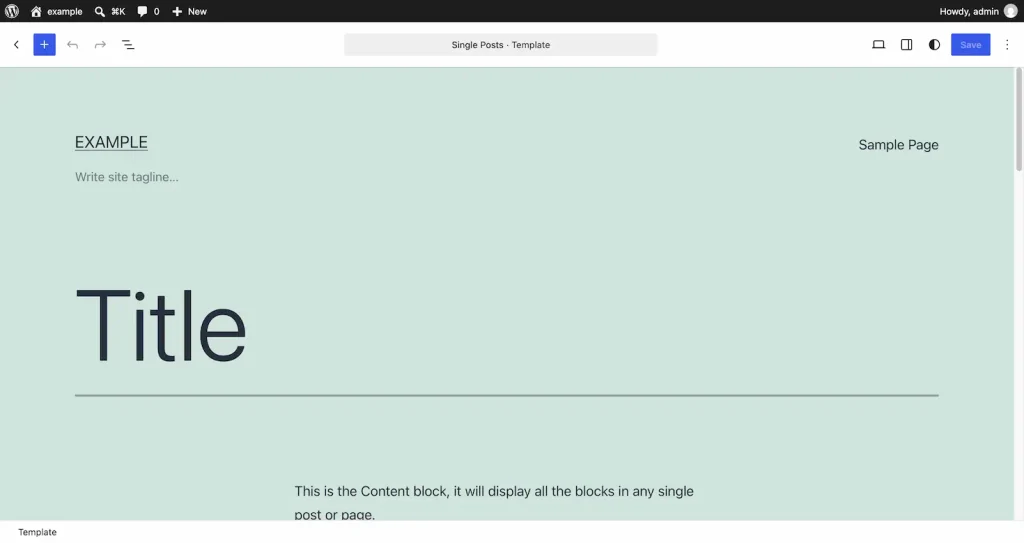
The block approach is more visual. The trade-off is that you need to learn how blocks, patterns, and template parts fit together.
Code, plugins, and compatibility
Classic themes give developers more room. PHP lets you run custom logic, hook into WordPress, and build almost anything. Most older plugins were written for this structure, so they usually work well.
Block themes lean on HTML and JSON instead. Most basic changes don’t need code. But plugins that add Customizer settings, rely on widget areas, or hook into PHP templates may not work the same way. Check compatibility before you switch.
Does your theme choice affect SEO?
Neither type helps you rank by default. Google looks at content quality, page speed, mobile experience, and clear page structure. Your theme affects those things, so focus on three areas:
- Speed: Test your homepage and one key post with Google PageSpeed Insights. Heavy themes and too many plugins slow pages down.
- Heading structure: Use one H1 per page. Some block templates add extra headings, so check your site title and template headings after you switch.
- Mobile layout: Preview your site on a phone. Both theme types can be responsive, but a poor setup can break the layout.
Which One Should You Choose?
Choose a block theme if:
- You’re starting a new site.
- You want to change headers, footers, and layouts without writing code.
- You’re comfortable with the block editor.
- The plugins you need support block themes.
Choose a classic theme if:
- You need custom PHP logic or deep theme hooks.
- You rely on widgets, the Customizer, or plugins that only work with classic themes.
- Your current classic theme works well and is still maintained. Block themes are newer, but that alone isn’t a reason to switch.
Some themes mix both approaches. These “hybrid” themes use classic PHP templates along with block features, such as theme.json or template parts. They’re a good middle path if you’re not sure.
Can you switch later?
Yes, but plan the move. Your posts, pages, and comments live in the database, and your images stay in the media library. All of it carries over. The parts that usually need rework are:
- Widgets: you’ll rebuild these with blocks.
- Customizer settings: you’ll recreate these in the Styles panel.
- Custom PHP templates: you’ll rebuild these as block templates.
- Theme-specific shortcodes: layouts built with them will need new blocks or patterns.
Back up your site first, and test the switch on a staging copy before you touch the live site.
The Bottom Line
The WordPress developer handbook calls block themes “the future of the WordPress project.” Classic themes still work and are fully supported, though. So the choice comes down to how you work. If you want visual control with blocks, go with a block theme. If you need code-level control or already have a classic setup that works, stay with classic.
Either way, test before you commit.